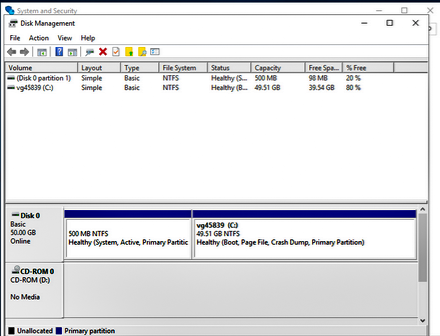
Before updating the drive size, you should always back up all important data stored on it. Resizing the drive may result in data loss or data corruption.
GrowPart — is a Linux command line tool used to extend a partition in a partition table. This command is provided by the cloud utility package.
In our example, the disk will be extended by 10 GB. To do this, you must perform the following algorithm of actions:
- Checking the availability of free space on the hard disk using the
lsblkcommand. If there is no free space, you need to create a new partition using the Linux distribution tools.
[root@45839 ~]# lsblk
NAME MAJ:MIN RM SIZE RO TYPE MOUNTPOINT
sda 8:0 0 40G 0 disk
├─sda1 8:1 0 1023M 0 part /boot
└─sda2 8:2 0 29G 0 part
├─vg45839-swap 253:0 0 3.7G 0 lvm [SWAP]
└─vg45839-root 253:1 0 25.3G 0 lvm /
sr0 11:0 1 1024M 0 rom
In our example, the root file system is on the physical volume /dev/sda2. Disk capacity - 30 GB.
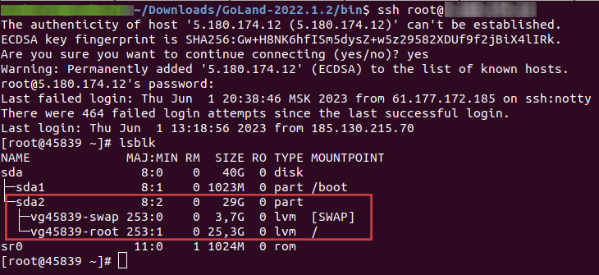
Note : If the physical volume has a different name, such as
/dev/vda2, use this partition name in subsequent instructions.
Use the growpart utility to expand a partition. For example, /dev/sda2:
lsblk
growpart /dev/sda 2
pvresize /dev/sda2
vgs
After this, you will receive the following output with the VG name:
    VG    #PV #LV #SN Attr   VSize    VFree
    vg45839   1   2   0 wz--n- <39.00g  10.00g
Substitute the value of VG in the following command:
lvextend -r -l +100%FREE /dev/vg45839/rootYou can also obtain the value /dev/vg45839/root from the output of the lvdisplay command in the LV Path field:
--- Logical volume ---
LV Path                /dev/vg45839/root
LV Name                root
VG Name                vg45839
...
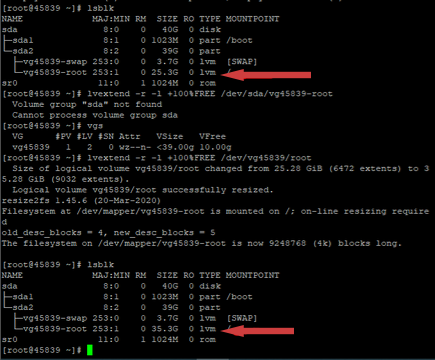
The result of the previous steps:
Windows
-
Go to Disk Manager (shortcut Win+X) and choose Disk Management.
-
Find the volume you want to expand, and right-click on its name, choose Properties.
-
In the Volume tab, click on the
Advancedbutton, then select Expand Volume.
-
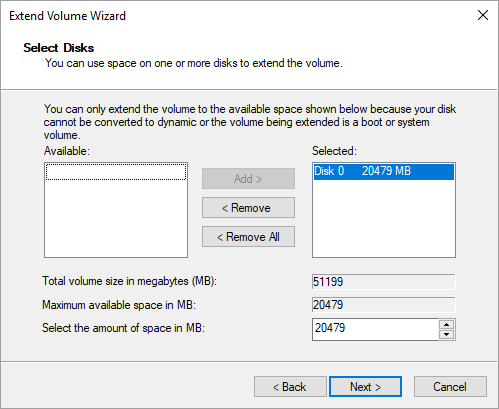
Go through as instructed and select free space on the hard disk to add it to the current volume.
-
Press the
Finishbutton and wait until the operation is over. -
Check the result of the change - the amount of available space on the volume: